
Remote work has fundamentally reshaped how we think about our home offices. As more professionals spend their days juggling video calls, spreadsheets, and creative projects from home, the demand for smarter, more versatile workspaces has never been higher. Yet one challenge persists: managing multiple devices on a cramped desk while keeping costs reasonable.
What if the large Smart TV already sitting in your living room or spare bedroom could double as a powerful productivity monitor? Paired with KVM (Keyboard, Video, Mouse) technology, your Smart TV transforms from a passive entertainment screen into the centerpiece of a streamlined, multi-device workstation. This combination delivers generous screen real estate for multitasking, eliminates the need for expensive dedicated monitors, and lets you switch seamlessly between your work laptop and personal PC with a single keystroke.
This article walks you through exactly why this setup works, how KVM technology enables effortless multiple device connectivity, and the practical steps to configure everything for peak performance. Whether you're a seasoned remote worker or just optimizing your home office, this guide offers a cost-effective path to a genuinely productive workspace.
Why Transform Your Smart TV into a Computer Monitor?
The most immediate advantage of using a Smart TV as your primary work display is sheer screen size. While a typical computer monitor tops out around 27 to 32 inches, most Smart TVs start at 43 inches and go well beyond. That extra real estate makes a genuine difference when you're managing spreadsheets alongside a video call, or reviewing design files without constant scrolling. Many modern Smart TVs also support 4K resolution, delivering crisp text and vivid visuals that rival — and often surpass — dedicated monitors at a similar price point.
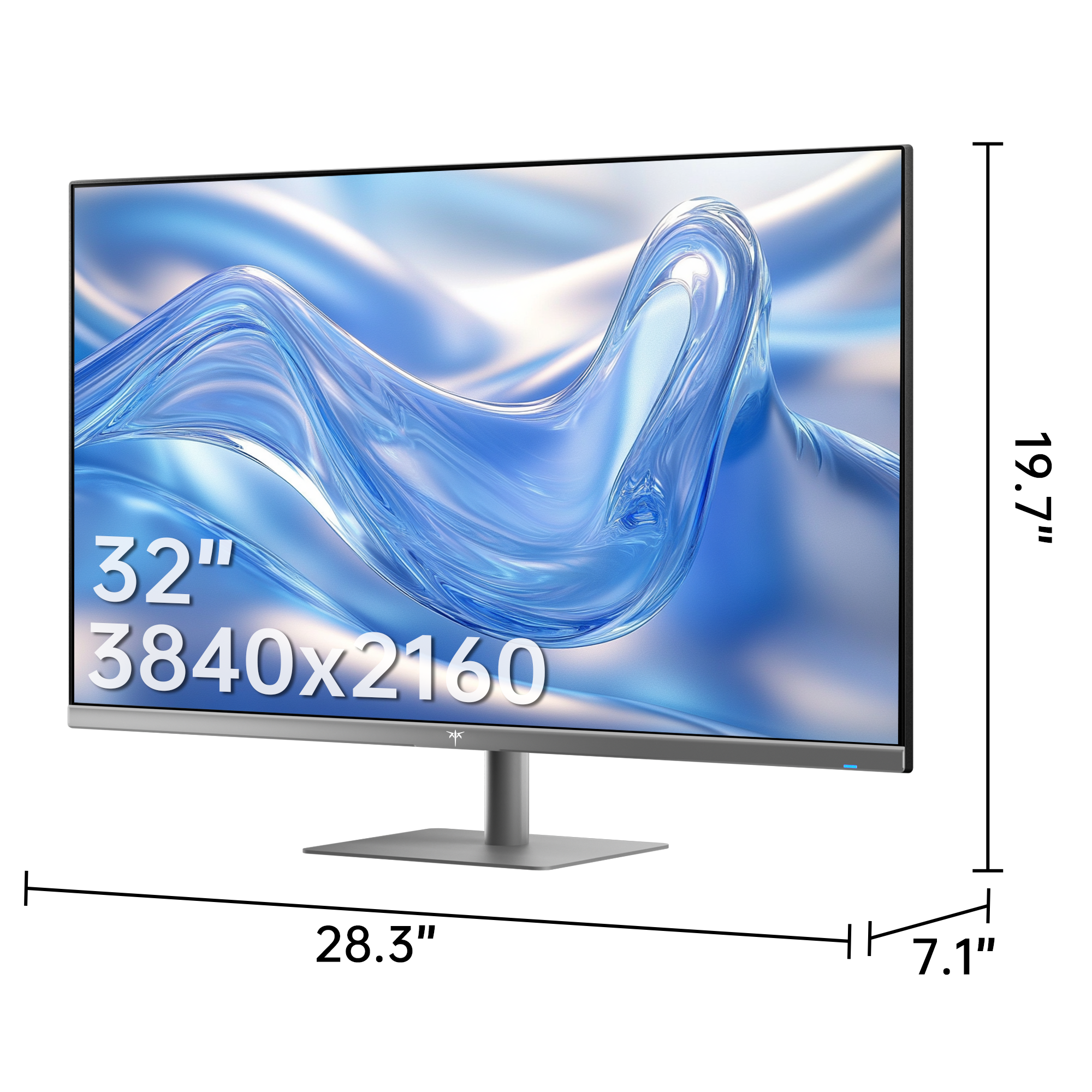
Cost-effectiveness is another compelling reason to make the switch. A quality 43-inch 4K Smart TV frequently costs less than a comparable professional-grade monitor, and you're getting a device that already handles streaming, gaming, and entertainment. Repurposing hardware you already own takes those savings even further, eliminating the need for a separate display purchase entirely. For those who prefer a purpose-built display, brands like KTC offer large-format monitors designed with both productivity and visual clarity in mind, bridging the gap between entertainment screens and professional workstation displays.
Two concerns often surface when people consider this setup: input lag and compatibility. Input lag is a valid consideration, but for productivity tasks like writing, coding, and document editing, the slight delay present in most modern Smart TVs is imperceptible. Compatibility is similarly straightforward — virtually every Smart TV manufactured in the past several years includes HDMI ports that connect directly to laptops and desktops. Enabling "PC Mode" or "Game Mode" in your TV's settings further reduces processing delay and sharpens text rendering.
Ultimately, treating your Smart TV as a productivity monitor isn't a compromise — it's a deliberate upgrade. The large display encourages better multitasking habits, reduces eye strain from cramped layouts, and lays the groundwork for a genuinely capable home office without demanding a significant investment.
Understanding KVM Technology for Seamless Multiple Device Connectivity
What is KVM and How Does It Work?
KVM stands for Keyboard, Video, Mouse — a switching technology that lets you control multiple computers using a single set of peripherals. Instead of maintaining separate keyboards, mice, and displays for each device, a KVM switch acts as a central hub that routes input and output signals between machines on demand. Hardware KVM switches are physical devices that connect via USB and HDMI or DisplayPort cables, making them universally compatible without requiring software installation. Software-based KVM solutions, by contrast, work over a local network and are better suited for computers already sharing the same desk environment. For a Smart TV setup, hardware KVM switches are the practical choice — they handle video signals directly, support high resolutions including 4K, and typically offer plug-and-play functionality that requires minimal configuration out of the box.
Benefits of KVM for Remote Workers
The immediate impact of adding a KVM switch to your Smart TV workstation is a dramatically cleaner desk. One keyboard, one mouse, and one large display serve every device you own — your work-issued laptop, personal desktop, or secondary machine all share the same workspace without the tangle of duplicate peripherals. Switching between them takes a single keystroke or button press, which matters more than it sounds during a busy workday. Imagine finishing a client video call on your work laptop, then instantly toggling to your personal PC to pull up a reference file — no unplugging, no repositioning, no lost momentum. For remote workers who routinely operate across company and personal devices, this fluidity directly reduces friction and mental load. KVM technology essentially transforms your Smart TV from a passive display into an intelligent command center that adapts to whichever task demands your attention next.
Step-by-Step Guide to Set Up Your Smart TV as a Productivity Monitor
Hardware and Compatibility Check
Before connecting anything, gather the right equipment. You'll need an HDMI cable — ideally HDMI 2.0 or higher to support 4K at 60Hz — along with any necessary adapters for your computer's output port. Many laptops use USB-C or DisplayPort, so a quality adapter that preserves signal integrity is worth the small investment. On the KVM side, confirm the switch supports your target resolution and refresh rate, since budget models sometimes cap at 1080p or 30Hz. Check your Smart TV's input specifications in its manual or settings menu, noting which HDMI ports support 4K and ARC. Most modern TVs label these clearly. If your TV lacks a native "PC Mode," look for "Game Mode" instead — both reduce internal image processing that causes blurry text and input delay. Verify your computer's graphics output matches what the TV accepts, and update display drivers beforehand to avoid resolution conflicts during setup.
Connection and Configuration Process
Start by powering everything off. Connect your first computer's video output to the KVM switch's input port using your HDMI or adapter cable, then repeat for each additional device. Run a single HDMI cable from the KVM's output port to your Smart TV. Plug your keyboard and mouse into the KVM's USB hub ports. Power everything on and select the correct HDMI input on your TV.
On your computer, open display settings and set the resolution to match your TV's native resolution — typically 3840x2160 for 4K models. Set the refresh rate to 60Hz if available. Enable "PC Mode" on the TV through its input settings menu, which sharpens text rendering noticeably. Increase display scaling to 150% or higher in your operating system to make text comfortably readable from your seated distance. Finally, test the KVM switch by pressing its hotkey combination — usually a double-tap of the Scroll Lock key — to confirm seamless toggling between connected devices before settling into your first work session.

Building a Dynamic Ecosystem with Your Enhanced Setup
Once your Smart TV and KVM switch are running smoothly, the real opportunity lies in expanding that foundation into a workspace that actively adapts to how you work. Start with peripherals that complement the large display — a wireless keyboard and mouse eliminate desk clutter while giving you flexibility to adjust your seating position relative to the screen. A USB hub connected through the KVM extends connectivity further, letting you attach external drives, a webcam, or a headset without reaching behind your computer each time.
Split-screen software takes the large display from convenient to genuinely powerful. Windows' Snap Assist and macOS's Split View let you anchor applications side by side, but third-party tools like PowerToys FancyZones or Magnet give you granular control over exactly how your screen divides. On a 55-inch 4K display, running a code editor, browser, and documentation window simultaneously is not only possible — it's comfortable. You stop toggling between tabs and start seeing your entire workflow at once.
Mobile devices fit naturally into this ecosystem as well. Screen mirroring through your Smart TV's built-in Miracast or AirPlay support lets you project a smartphone or tablet onto the display without additional cables, useful for referencing notes or monitoring communication apps while keeping your primary workspace uninterrupted. Some KVM switches also include USB-C inputs, allowing a modern smartphone or tablet to function as a full input source alongside your computers. The result is a dynamic ecosystem where every device you own contributes to a single, coherent workspace rather than competing for your attention across separate screens and surfaces.
Practical Solutions for Remote Workers: Maximizing Efficiency
With your Smart TV and KVM switch configured, a few targeted habits unlock the full productivity potential of this setup. Virtual desktops are your most underused tool — Windows and macOS both support multiple desktop environments natively, letting you dedicate one workspace to focused writing or coding, another to communication apps, and a third to reference material. Switching between them takes a keyboard shortcut, keeping your large display organized rather than overwhelmed.
Video conferencing benefits enormously from the expanded screen. Position your meeting window on one side of the display while keeping a shared document, project brief, or notes visible alongside it — no more minimizing and maximizing between the call and your work. The screen size also reduces the need to lean in, which naturally improves your seated posture over long sessions. Speaking of ergonomics, place your TV at eye level and maintain roughly an arm's length of distance per foot of screen size; for a 43-inch TV, that means sitting approximately four feet back. This prevents neck strain that smaller, closer monitors often cause.
The KVM switch earns its place most visibly during task transitions. Keeping your work laptop and personal PC both connected means your entire workflow — professional deadlines and personal projects alike — lives within a single keystroke. That frictionless switching, combined with the generous display and organized virtual desktops, turns your Smart TV into a genuinely multi-functional productivity hub that meets the real demands of remote work rather than just approximating a traditional office setup.
Your Smart TV Workstation: A Practical Path to Remote Productivity
Transforming your Smart TV into a productivity monitor paired with a KVM switch is one of the most practical upgrades a remote worker can make. The large, high-resolution display delivers screen real estate that dedicated monitors rarely match at the same price, while KVM technology eliminates the peripheral clutter and device-switching friction that quietly drains focus throughout the workday. Together, they create a workspace that handles professional demands without requiring a significant financial commitment or a complete desk overhaul.
The setup process is straightforward: verify compatibility, connect your devices through the KVM switch, configure your display settings for sharp text and smooth performance, and layer in habits like virtual desktops and ergonomic positioning to get the most from your expanded screen. From there, the ecosystem grows naturally — wireless peripherals, split-screen tools, and mobile integration all build on that same foundation.
Remote work isn't going anywhere, and neither is the need for a home office that genuinely supports how you work. If a large Smart TV is already part of your home, you're closer to that setup than you might think. Take the steps outlined here, connect your devices, and experience firsthand how a smarter workspace translates into a more productive, less stressful workday.