
Modern laptops have become impressively thin and lightweight, but this sleek design comes with a significant trade-off: drastically reduced port availability. If you're a remote worker, you've likely experienced the daily frustration of juggling multiple dongles just to connect your monitor, external hard drive, keyboard, and Ethernet cable. Your desk becomes a tangled mess of adapters, each occupying precious space and creating potential points of failure. A USB C hub offers an elegant solution to this problem, transforming that single USB-C port into a comprehensive connectivity center that powers your entire workstation. But with countless options flooding the market, how do you identify the best USB-C hub that delivers reliability, performance, and the specific ports your professional workflow demands? This guide cuts through the confusion by exploring the essential features you need, walking you through real-world use cases, and providing a systematic approach to selecting a hub that will serve as the backbone of your productive remote work setup.
Why a USB C Hub is Essential for Your Remote Workstation Setup
The laptop industry's pivot toward USB-C represents a fundamental shift in how we think about connectivity. Manufacturers have embraced radical minimalism, stripping away legacy ports in favor of sleek profiles and lighter chassis. While this evolution has produced remarkably portable machines, it has created a genuine challenge for remote workers who depend on multiple peripherals to maintain productivity. Your typical workday likely involves connecting at least two external monitors to expand your visual workspace, plugging in a wired keyboard and mouse for ergonomic comfort, accessing files from external SSDs or hard drives, and maintaining a stable Ethernet connection to avoid the unpredictability of Wi-Fi during critical video conferences. Without a proper solution, you're forced to maintain a collection of individual adapters—a DisplayPort dongle here, a USB-A adapter there, perhaps a separate Ethernet converter—each competing for limited desk space and introducing potential connection failures. This fragmented approach transforms your workspace into a frustrating puzzle of compatibility issues and cable management nightmares. A quality USB-C hub consolidates all these connection points into a single, reliable device that plugs into one port and delivers comprehensive connectivity. It's not merely a convenience accessory but rather the foundational infrastructure that determines whether your remote workstation functions as a professional-grade setup or remains a constant source of technical friction that undermines your efficiency and focus throughout the workday.
Key Features to Look for in the Best USB C Hub
Port Selection and Variety: Beyond Just USB-A
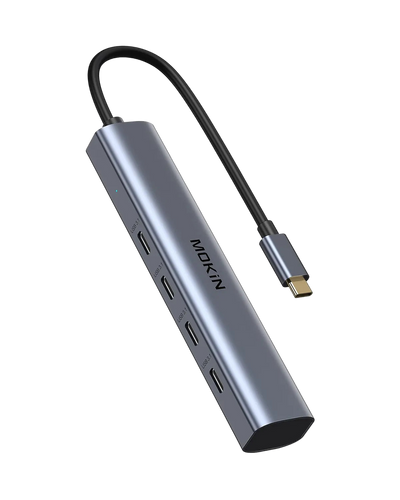
The foundation of any effective USB-C hub lies in its port configuration, and your selection should directly reflect your daily workflow requirements. Multiple USB-A ports remain indispensable despite the industry's shift toward USB-C, as most professional peripherals—from wireless mouse receivers to external keyboards and backup drives—still rely on this standard. Look for hubs offering at least three USB-A 3.0 or 3.2 ports to ensure adequate data transfer speeds when moving large files. A dedicated USB-C port with Power Delivery pass-through is non-negotiable, allowing you to charge your laptop while simultaneously using all other hub functions. For visual workspace expansion, HDMI or DisplayPort outputs supporting 4K resolution at 60Hz ensure crisp, lag-free display performance during video conferences and detailed document work. Remote workers dependent on stable connectivity should prioritize hubs featuring Gigabit Ethernet ports, which eliminate the packet loss and latency issues that plague Wi-Fi during bandwidth-intensive tasks. Finally, SD and microSD card readers prove invaluable for photographers, videographers, and anyone regularly transferring media files, eliminating the need for yet another separate adapter cluttering your desk.

Power Delivery (PD) and Charging Capability
Power Delivery technology transforms your hub from a simple port expander into a genuine workstation centerpiece by enabling laptop charging through the hub itself. High-wattage PD support—ideally 85W to 100W—ensures your laptop receives sufficient power to charge at full speed while operating all connected peripherals simultaneously. This capability is particularly critical for power-hungry laptops like the MacBook Pro 16-inch or Dell XPS 15, which require substantial wattage to maintain performance under load. When evaluating PD specifications, verify that the hub reserves adequate power for its own operations and connected devices while still delivering the manufacturer-specified charging rate to your laptop. Safety features matter significantly here: quality hubs incorporate intelligent power management circuits that prevent overcharging, manage heat dissipation, and protect against voltage fluctuations. Brands like MOKiN have developed specialized charging circuitry in their hub designs to address these power management challenges, ensuring stable performance across various laptop models. Compatibility extends beyond wattage numbers—ensure the hub supports the USB Power Delivery standard your specific laptop requires, as proprietary charging protocols may not function correctly with all hubs.
Data Transfer Speeds and Video Output Standards
Understanding data transfer specifications prevents frustrating bottlenecks when working with large files or multiple high-bandwidth devices. USB 3.0 delivers 5Gbps transfer speeds, adequate for most office peripherals, while USB 3.2 Gen 2 doubles that to 10Gbps, significantly reducing wait times when backing up project files to external SSDs. Thunderbolt 3 and 4 hubs offer exceptional 40Gbps bandwidth, though they command premium prices and require Thunderbolt-compatible laptops to realize their full potential. Video output standards directly impact your multi-monitor setup's quality and responsiveness. HDMI 2.0 supports 4K resolution at 60Hz on a single display, which suffices for most professional applications, while HDMI 2.1 enables higher refresh rates and resolutions for specialized work. If you're running dual 4K monitors, verify the hub explicitly supports this configuration, as bandwidth limitations can force you to accept reduced refresh rates or resolution on one display. The hub's internal controller chip determines how efficiently it allocates bandwidth across simultaneous operations, so established brands with proven chipsets typically deliver more reliable performance than budget alternatives.
Build Quality, Design, and Form Factor
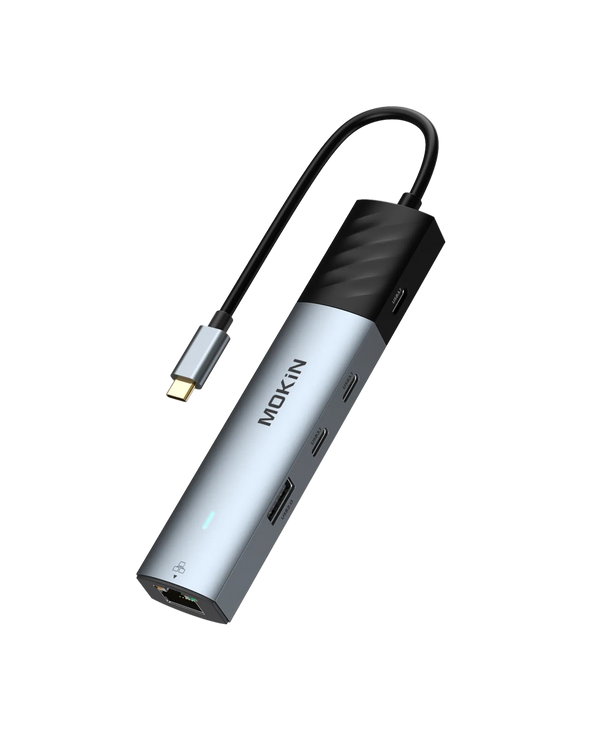
Physical construction directly impacts both longevity and performance, making build quality a crucial consideration beyond mere aesthetics. Aluminum enclosures provide superior heat dissipation compared to plastic housings, preventing thermal throttling when multiple ports operate under sustained load—a common scenario when transferring files while charging and running dual displays. Cable design presents a meaningful choice: fixed cables reduce potential failure points and maintain a cleaner appearance, while detachable cables offer replacement flexibility if damaged and easier packing for mobile workers. Cable length matters for desk setup flexibility; shorter cables keep connections tidy but may create tension if your laptop sits at a distance, while longer cables introduce potential signal degradation for high-speed data transfer. Compact form factors appeal to remote workers who split time between home offices and co-working spaces, though extremely small hubs may sacrifice port spacing, making it difficult to connect bulkier USB devices simultaneously. Examine port placement carefully—well-designed hubs space connections adequately to accommodate wider plugs without blocking adjacent ports, a seemingly minor detail that dramatically affects daily usability.
How to Choose the Best USB C Hub: A Step-by-Step Guide for Remote Workers
Step 1: Audit Your Current and Future Peripheral Needs
Begin by creating a comprehensive inventory of every device you connect to your laptop during a typical workday. Walk through your morning setup routine and list each item: external monitors (note whether you use one or two), external storage drives (SSDs, hard drives, or thumb drives), wired keyboard and mouse or their wireless receivers, headset or microphone for calls, webcam if you've upgraded from your laptop's built-in camera, and whether you rely on Ethernet for network stability. Don't overlook occasional connections like SD cards from cameras, external audio interfaces, or charging cables for phones and tablets. Next, project forward six to twelve months and consider workflow changes on the horizon. Are you planning to upgrade to a 4K monitor or add a second display? Will upcoming projects require faster external storage or regular media card transfers? This forward-thinking approach prevents you from outgrowing your hub within months of purchase, forcing an expensive replacement when your needs inevitably expand.
Step 2: Match Ports to Your Workflow
Transform your device inventory into specific port requirements by categorizing your work style. The Minimalist remote worker connects a single monitor, wireless mouse receiver, and occasional external drive, requiring a compact hub with one HDMI port, two USB-A ports, and PD pass-through. The Dual-Monitor Power User runs two 4K displays alongside multiple peripherals and wired network, demanding dual HDMI or DisplayPort outputs, at least three USB-A ports, Gigabit Ethernet, and robust 100W PD charging. The Content Creator juggles high-resolution monitors, external SSDs for video editing, frequent SD card imports, and bandwidth-intensive file transfers, necessitating Thunderbolt speeds, dual video outputs, dedicated card readers, and multiple high-speed USB ports. Map your actual device list against these profiles to identify your minimum viable configuration, then add one or two extra USB-A ports as buffer capacity for unexpected needs or visiting colleagues who need to quickly connect a device.
Step 3: Verify Compatibility with Your Laptop
Your laptop's USB-C port specifications determine which hub features you can actually utilize, making compatibility verification essential before purchase. Access your laptop manufacturer's technical specifications page and identify whether your USB-C ports support USB 3.2 Gen 1, Gen 2, or Thunderbolt 3/4 protocols, as this determines maximum data transfer speeds and video output capabilities. Check your laptop's power requirements—typically listed on the original charger—to ensure the hub's PD wattage meets or exceeds this number while accounting for the hub's own power consumption overhead. Confirm whether your laptop supports DisplayPort Alt Mode, which enables video output through USB-C; without this, even the best hub cannot drive external monitors. Operating system considerations matter too: while USB-C hubs generally work across Windows, macOS, and Linux, some advanced features like automatic driver installation or proprietary display management software may function better on specific platforms. Search online forums for your exact laptop model paired with hub brands you're considering to uncover real-world compatibility issues that specifications sheets won't reveal.
Step 4: Set Your Budget and Prioritize Features
USB-C hub pricing spans from thirty dollars for basic models to three hundred dollars for premium Thunderbolt docks, requiring strategic prioritization to maximize value within your budget constraints. Establish your absolute spending limit, then rank features by criticality to your daily workflow. Reliable Power Delivery and stable video output should top your priority list, as failures in these core functions render the hub unusable regardless of other features. Allocate budget toward proven brands with established reputations for these fundamentals rather than unknown manufacturers offering excessive port counts at suspiciously low prices. Data transfer speed becomes your second-tier priority—invest in USB 3.2 Gen 2 if you regularly move large files, but USB 3.0 suffices for basic peripherals and occasional transfers. Consider an extra USB-A port a lower priority than rock-solid performance on essential functions; you can always add a small USB-A splitter later if needed, but you cannot retrofit better PD circuitry or video controllers. Finally, premium materials and aesthetic design should claim budget only after functional requirements are fully satisfied, unless workspace appearance directly impacts your professional image during client video calls.
Top USB C Hub Considerations for a Flawless Workstation Experience
Avoiding Overheating and Bandwidth Bottlenecks
Simultaneous operation of multiple high-bandwidth devices reveals the limitations of even well-designed hubs, particularly when transferring large files while running dual 4K displays and charging your laptop. The hub's internal controller must allocate finite bandwidth across all active connections, and exceeding this capacity results in stuttering video, slower file transfers, or unexpected device disconnections. Quality hubs incorporate intelligent bandwidth management and thermal design to mitigate these issues, but you can optimize performance through strategic device placement. Connect bandwidth-intensive peripherals like external SSDs to the fastest available USB ports, reserve lower-speed ports for keyboards and mice that require minimal data throughput, and consider using your laptop's secondary USB-C port for charging if bandwidth demands consistently max out your hub. Overheating compounds performance problems as thermal throttling forces the hub to reduce speeds for self-protection. Ensure adequate airflow around your hub by avoiding enclosed spaces, and consider models with aluminum construction that naturally dissipates heat more effectively than plastic alternatives.
The Role of a Hub in Cable Management and Workspace Aesthetics
Beyond pure functionality, a thoughtfully selected hub transforms your workspace from a tangle of cables into a streamlined professional environment. A single connection point for all peripherals means cables route cleanly to one central location rather than sprawling across your desk in multiple directions. This consolidation not only improves visual appeal but also simplifies your daily routine—connecting and disconnecting your laptop becomes a single-cable operation instead of a tedious plugging and unplugging ritual. For remote workers who take video calls, a clean desk background projects professionalism and organizational competence that scattered adapters and cable chaos undermine.
Future-Proofing Your Investment
Technology standards continue evolving, with USB4 promising even greater bandwidth and upcoming Power Delivery specifications supporting higher wattages for next-generation laptops. While you cannot entirely future-proof your purchase, selecting a hub with specifications that exceed your current minimum requirements provides headroom for workflow expansion. Choosing 100W PD when your current laptop needs only 65W accommodates a future upgrade to a more powerful machine, and opting for USB 3.2 Gen 2 ports instead of 3.0 ensures compatibility with faster storage devices you may acquire later.
Building Your Ideal Remote Workstation
The best USB type c hub for your remote workstation isn't determined by the longest feature list or the highest price tag, but by how precisely it aligns with your specific workflow requirements and delivers unwavering reliability day after day. Throughout this guide, we've established that port selection must directly reflect your actual peripheral needs, Power Delivery capability ensures your laptop charges while powering your entire setup, data transfer speeds and video standards determine performance under real-world loads, and build quality separates tools that last from disposable accessories that fail at critical moments. By systematically auditing your current devices, projecting future needs, verifying laptop compatibility, and strategically allocating your budget toward features that matter most to your daily work, you can confidently identify the hub that transforms your laptop into a comprehensive workstation. This isn't merely about adding ports—it's about eliminating technical friction that fragments your focus, creating a professional environment that supports sustained productivity, and building infrastructure that adapts as your remote work evolves. The right USB-C hub becomes invisible in the best possible way, reliably connecting your digital workspace so you can concentrate entirely on the work that matters rather than wrestling with connectivity challenges that undermine your professional effectiveness.