
Your phone is full of photos, your laptop is running out of space, and you're paying monthly fees for cloud storage that keeps increasing. Sound familiar? As our digital lives expand with 4K videos, high-resolution photos, and countless documents, traditional storage solutions are showing their limits. External hard drives sit disconnected when you need them most, while cloud services charge recurring fees and raise valid privacy concerns about who really controls your data. Enter the NAS server—a network-attached storage system that's becoming essential for anyone serious about managing their digital life. This article will demystify what a NAS server actually is, explain why it's a game-changer for home use, and walk you through practical setup steps to get started. Tired of monthly cloud fees and privacy concerns? Let's explore how a home NAS server puts you back in control of your data while saving money in the long run.
What is a NAS Server? A Comprehensive Introduction to NAS Systems
A NAS (Network Attached Storage) server is essentially a dedicated storage device that connects directly to your home network, making your files accessible to any connected device—whether that's your laptop, smartphone, tablet, or smart TV. Unlike traditional external hard drives that require physical connection to a single computer, a nas server operates independently on your network, functioning as a personal file server that everyone in your household can access simultaneously. It differs fundamentally from cloud storage services because your data stays physically in your home, under your complete control.
At its core, a NAS consists of specialized hardware including one or multiple hard drive bays, a processor to handle file requests, RAM for smooth operation, and network ports for connectivity. The system runs dedicated operating software—such as Synology's DSM, QNAP's QTS, or open-source solutions like TrueNAS—that provides an intuitive interface for managing files, setting user permissions, and configuring advanced features. Once connected to your router via ethernet, the NAS becomes a central hub where you can store, organize, and retrieve data from anywhere on your network, transforming how you interact with your digital files without depending on third-party services.
Core Components and How NAS Works
The hardware foundation of a NAS includes drive bays that house your storage drives (typically supporting 2 to 12+ drives depending on the model), a CPU that ranges from basic ARM processors for light tasks to powerful Intel or AMD chips for demanding applications like video transcoding, and sufficient RAM to handle multiple simultaneous connections. The software layer provides file management systems, user authentication, and permission controls that let you decide who accesses what. Setting up network access is straightforward: connect the NAS to your router, assign it a static IP address or use automatic discovery, and install companion apps on your devices. The NAS then responds to file requests across your network, streaming media to your TV, syncing documents to your laptop, or backing up photos from your phone—all while maintaining data integrity and managing concurrent access efficiently.
Why Every Tech Enthusiast Needs a Home NAS Server
The compelling case for a home NAS begins with data sovereignty—your files remain physically under your roof, protected from service shutdowns, policy changes, or unauthorized access that plague cloud providers. This control extends to privacy; no third party scans your photos for advertising or faces government data requests about your content. Financially, a NAS represents a one-time investment that eliminates perpetual subscription fees. While a quality two-bay NAS with drives might cost $400-600 upfront, it replaces years of $10-20 monthly cloud payments, paying for itself within two to three years while offering significantly more storage capacity.
Beyond basic storage, a NAS transforms into a versatile home server supporting multiple use cases simultaneously. It becomes your automated backup destination for all household devices, ensuring family photos and important documents survive hardware failures. Media enthusiasts can stream their personal movie and music libraries to any device without internet dependency or format restrictions. Remote access features let you retrieve files from work or vacation as securely as if you were home. For those inclined toward projects, a NAS can host personal websites, run Docker containers for home automation, or serve as a development environment. This customization potential—loading custom applications, tweaking performance settings, and expanding storage as needed—appeals directly to tech enthusiasts who value hands-on control and the satisfaction of building tailored solutions rather than accepting one-size-fits-all commercial services.
NAS vs. Cloud Storage: Taking Back Control of Your Data
When comparing NAS to services like Google Drive or Dropbox, the fundamental difference lies in ownership versus rental. Cloud storage offers convenience but locks you into ongoing payments with no equity—stop paying and your access disappears. A NAS inverts this model: higher initial cost but permanent ownership, with storage that appreciates in value as cloud subscriptions increase. Security represents another critical distinction. While cloud providers encrypt data, they hold the keys and can access your content for compliance, troubleshooting, or unfortunate breaches. Your NAS encrypts data with keys only you control, making unauthorized access exponentially harder. For tech-savvy users, this independence means freedom from bandwidth throttling, arbitrary file size limits, and platform lock-in, while maintaining the convenience of anywhere access through self-hosted solutions that put you firmly in the driver's seat of your digital infrastructure.
Key Features of Modern NAS Systems for Digital Asset Management
Modern NAS systems have evolved far beyond simple file storage, offering sophisticated features that transform how you manage digital assets. Data redundancy through RAID (Redundant Array of Independent Disks) configurations stands as a cornerstone feature, allowing you to mirror data across multiple drives so that if one fails, your files remain safe and accessible without interruption. RAID 1 mirrors two drives for maximum protection, while RAID 5 balances protection with storage efficiency across three or more drives. Beyond redundancy, integrated applications turn your NAS into a comprehensive digital hub—Plex or Jellyfin for organizing and streaming your media library with beautiful interfaces, Synology Photos or PhotoPrism for intelligent photo management with facial recognition and automatic tagging, and dedicated backup solutions like Hyper Backup or Duplicati that automate protection of your computers and mobile devices.
Remote access capabilities deserve special attention for digital asset management. Modern NAS systems provide secure external access without complex networking knowledge, letting you retrieve important documents during business trips or share photo albums with family across the country. The software intelligently organizes your assets—automatically sorting photos by date and location, transcoding videos to formats compatible with any device, and providing powerful search functions that locate files instantly across terabytes of data. For professionals managing extensive creative projects, version control features track document changes, while selective sync ensures your laptop carries only current project files rather than your entire archive. These digital asset management tools eliminate the chaos of scattered files across devices, creating a centralized, searchable, and protected repository that grows with your needs while maintaining the performance and accessibility that tech enthusiasts demand from their infrastructure.
Building Your Personal Cloud with NAS
Creating your personal cloud with a NAS delivers the convenience of services like Dropbox while maintaining complete privacy and control. Solutions like Synology's QuickConnect, QNAP's myQNAPcloud, or self-hosted options using Tailscale or WireGuard VPN establish secure connections to your home NAS from anywhere with internet access, without exposing your system to broad security risks. The synchronization experience rivals commercial clouds—install companion apps on your devices, designate folders to sync, and changes propagate automatically. Your smartphone photos upload to your NAS overnight, edited documents on your work laptop sync back home, and everything remains accessible through mobile apps that stream media, preview documents, and share files with intuitive interfaces. Unlike commercial clouds, you control bandwidth allocation, storage limits don't exist beyond your physical drives, and there's no algorithm scanning your content. This personal cloud architecture proves particularly valuable for families, allowing each member their private space while sharing common folders for photos or documents, all managed through granular permissions that you configure exactly as needed.
Step-by-Step Guide to Setting Up Your Home NAS Server: Best Practices
Setting up your first NAS might seem daunting, but following a structured approach ensures a smooth experience that gets you operational quickly while avoiding common pitfalls. The journey begins with honest assessment of your needs—calculate current storage usage across all devices, then multiply by three to account for growth and backups. Consider performance requirements: casual file storage needs modest specs, while 4K media streaming or running multiple applications demands more powerful processors and additional RAM. Budget realistically by factoring both the NAS enclosure and drives separately, remembering that quality drives designed for NAS use (like WD Red or Seagate IronWolf) prevent headaches down the road.
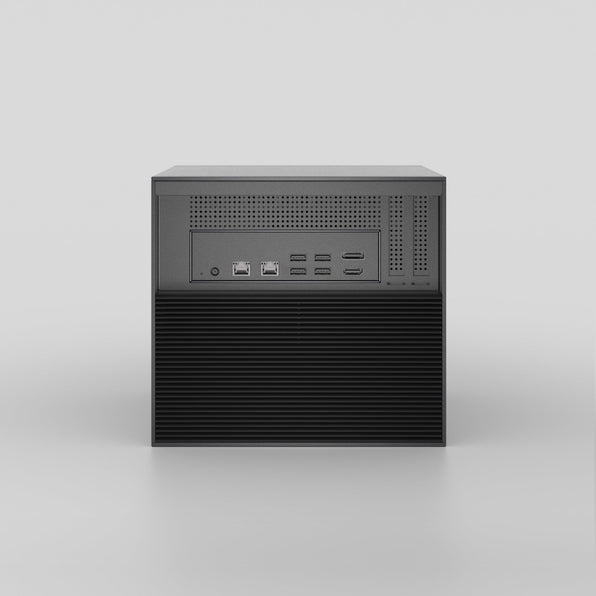
Once you've selected hardware, physical setup takes minutes—unbox the unit, install drives into their bays following the manufacturer's sliding mechanism, connect power and ethernet cables to your router, then power on. The NAS announces itself on your network, typically accessible by typing its default address into a browser or using the manufacturer's discovery tool. Initial software configuration walks you through creating an administrator account (use a strong, unique password), selecting a RAID configuration appropriate for your drive count and protection needs, and formatting the storage pool. Create shared folders with descriptive names, then configure user accounts with appropriate permissions—perhaps full access for yourself, read-only for kids' homework folders, or specific media libraries for different family members. Enable automatic updates for security patches, activate the built-in firewall, and configure encrypted connections for remote access using the manufacturer's secure relay service or by setting up a VPN. Data migration follows logically: start with critical documents and photos, verify they transferred correctly, then proceed with larger media libraries during overnight sessions. Finally, establish your backup strategy—configure the NAS to automatically back up connected computers, set up cloud sync for critical files as offsite protection, and schedule the NAS itself to back up to an external drive monthly, creating the robust 3-2-1 backup approach that protects against any single point of failure.
Planning and Selecting Your NAS System
Begin by determining your storage capacity needs—if you currently use 500GB across devices, a 4TB usable capacity (accounting for RAID redundancy) provides comfortable room for growth. Performance considerations matter more than many realize: streaming one 4K video requires modest hardware, but transcoding multiple streams simultaneously or running Docker containers demands multi-core processors and 4GB+ RAM. For beginners prioritizing simplicity, two-bay systems from Synology (like the DS224+) or QNAP (TS-264) offer intuitive interfaces and sufficient power for typical home use. Advanced users managing extensive media libraries or development projects should consider four-bay systems with expandable RAM and faster processors. The market has also seen newer entrants like Zima offering compact NAS solutions that appeal to users seeking streamlined setups for personal cloud storage. Check network compatibility—gigabit ethernet is minimum, while 2.5GbE or 10GbE ports future-proof for high-bandwidth applications. Don't overlook ecosystem factors: Synology excels in user-friendly software and mobile apps, QNAP offers more advanced features and virtualization, while DIY solutions like building a TrueNAS system provide maximum flexibility for those comfortable with Linux.
Installation, Configuration, and Security Setup
After physical installation, access the setup wizard through your browser—most systems are found at findsynology.com or by checking your router's connected devices list. The wizard guides you through naming your NAS, creating the admin account, and selecting storage configuration. Choose RAID 1 for two-drive systems (mirroring for maximum protection), RAID 5 for three or more drives (balancing protection with usable space), or SHR (Synology Hybrid RAID) for flexible expansion. Create a logical folder structure from the start: separate folders for Documents, Photos, Videos, and Backups prevent future organizational headaches. Configure user accounts with principle of least privilege—create individual accounts rather than sharing admin credentials, assign permissions folder-by-folder, and enable two-factor authentication for administrator access. Security hardening is critical: change the default admin port from 5000 to something non-standard, enable auto-block for failed login attempts, activate HTTPS with Let's Encrypt certificates for encrypted web access, and disable unused services. For remote access, use the manufacturer's secure relay service (QuickConnect, myQNAPcloud) which tunnels connections safely, or configure WireGuard VPN for direct encrypted access. Install essential packages like Synology Drive for file syncing, Plex or Jellyfin for media streaming, and Hyper Backup for automated backup jobs, configuring each with specific folders and appropriate user access.
Ongoing Maintenance and Advanced Tips
Establish a monthly maintenance routine to keep your NAS healthy: check drive health reports through the storage manager (SMART status warnings indicate drives needing replacement), verify RAID integrity is consistent, review system logs for unusual access patterns or errors, and confirm backup jobs completed successfully. Enable automatic security updates while scheduling major DSM/QTS upgrades for weekends when you can monitor the process. Implement the 3-2-1 backup rule even for your NAS: maintain three copies of critical data (primary on NAS, secondary in different RAID array or folder, tertiary offsite), across two different media types, with one copy off-site—connect a large external drive monthly for local backup, and sync essential files to encrypted cloud storage like Backblaze B2 or Wasabi for disaster recovery. Advanced users can leverage automation: schedule photo uploads from phones overnight when on home WiFi, configure download clients to organize media automatically, set up Docker containers for Home Assistant or Pi-hole ad blocking, or enable snapshot replication to capture point-in-time recovery options. Performance optimization includes enabling SSD caching if your NAS supports it, adjusting network settings for jumbo frames on capable networks, and monitoring resource usage to identify bottlenecks before they impact experience. Document your configuration—note RAID setup, user permissions, installed packages, and network settings—so recovery from hardware failure or major upgrades proceeds smoothly without guesswork.
Take Control of Your Digital Future with a Home NAS
A NAS server fundamentally changes how you interact with your digital life, offering genuine ownership of your data rather than perpetual rental from cloud providers. We've explored how these network-attached storage systems deliver centralized access to files across all your devices, provide robust data protection through RAID configurations, and support diverse applications from automated backups to personal media streaming—all while eliminating recurring subscription fees and privacy compromises inherent to commercial cloud services. For tech enthusiasts, a NAS represents more than storage; it's a customizable platform for building exactly the digital infrastructure you need, whether that's a simple family photo repository or a sophisticated home server running multiple services. The initial investment pays dividends through years of reliable service, expanding storage capacity, and the satisfaction of controlling your own technology stack. If you're ready to reclaim control over your digital assets, start by assessing your storage needs and exploring entry-level systems from Synology or QNAP, or dive deeper with a DIY TrueNAS build. The setup process is more approachable than you might think, and the long-term benefits—financial savings, enhanced privacy, and unlimited flexibility—make a home NAS one of the smartest technology investments you can make for your digital future.